24.03.2025
Getting started with the ADAPT E1
Unlock the full potential of your ADAPT E1 with these essential tips



Unlock the full potential of your ADAPT E1 with these essential tips
Before you can start using your ADAPT E1 follow these short steps to take it out of shipping mode:
Now your ADAPT E1 is ready for use.
Choosing the right size ear tips is the first step to enjoying every song and call with outstanding comfort and sound. One size does not fit all so we recommend spending a few minutes to find the right size for you.
To understand how a good seal sounds, put your fingers in your ears or press on the outside of your ears to block your ear canal. Then, try talking and notice the difference.
With both earbuds in, play a song with deep bass. Press on both earbuds gently, if the bass sounds fuller and richer you should try a larger ear tip to create a better seal.
Insert both earbuds and enable active noise cancellation (ANC) by pressing on the right earbud button for 2 seconds. With a good seal and ANC on you should experience significant damping of the surrounding noise. Press the right button again for 2 seconds to switch from ANC mode to Ambient mode. With an optimal seal you should also experience a noticeable difference from ANC on where noise is blocked out to Ambient mode where you will hear more of the noise around you.
Once you’ve found the right fit it’s quick and easy to check for the newest software, ensuring flawless operation and maximum productivity. Choose how you would like to make your updates and take control of your sound environment with EPOS Connect.
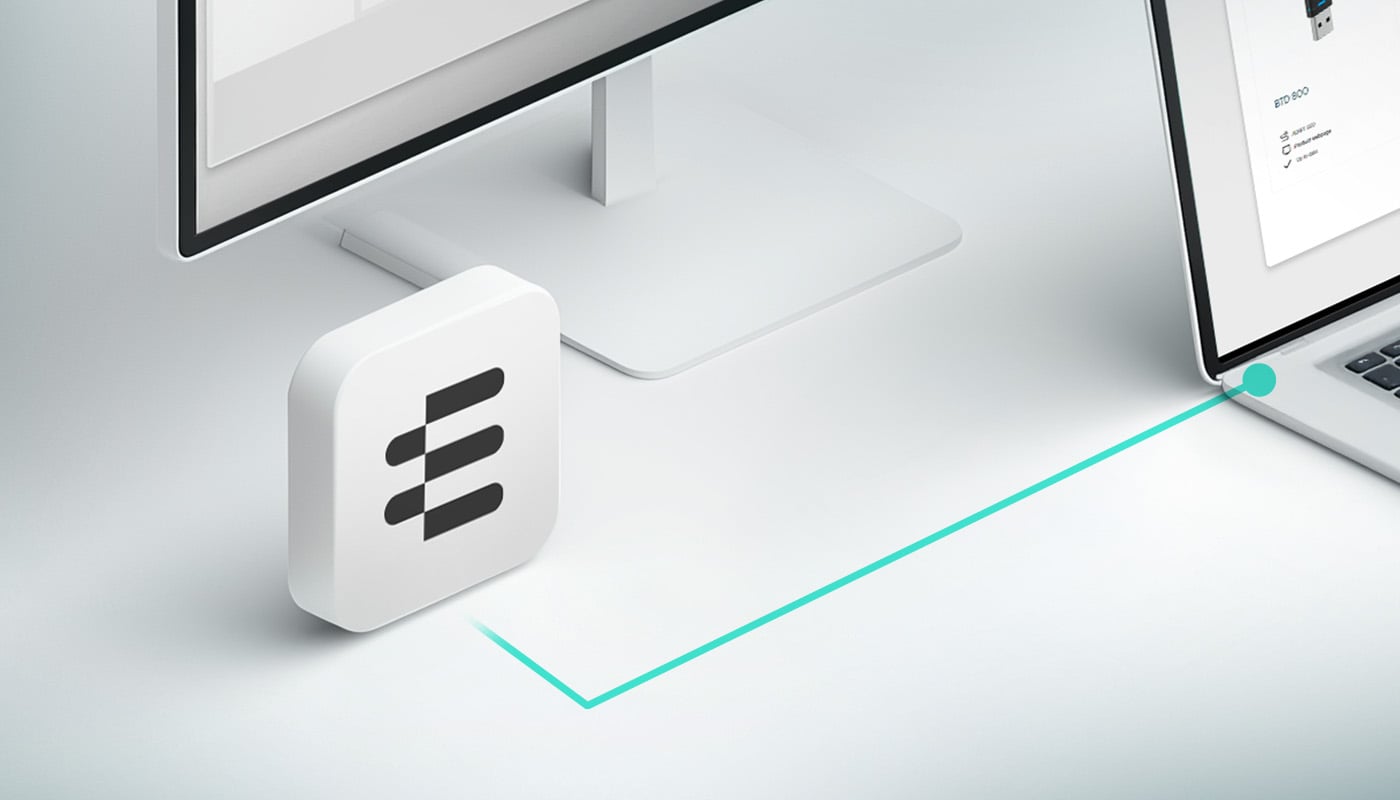
EPOS Connect for Windows
EPOS Connect for Windows gives the end user access to the latest firmware updates and personalized audio device settings. Stay in control with a tool that keeps EPOS headsets and speakerphones work seamlessly with all leading softphones.
Version 8.7.0
EPOS Connect for Mac
EPOS Connect for Mac ensures that your headset interfaces with your softphone and enables call control seamlessly. Stay up to date with latest firmware updates and configure your audio devices according to your personal preferences.
Version 8.7.0
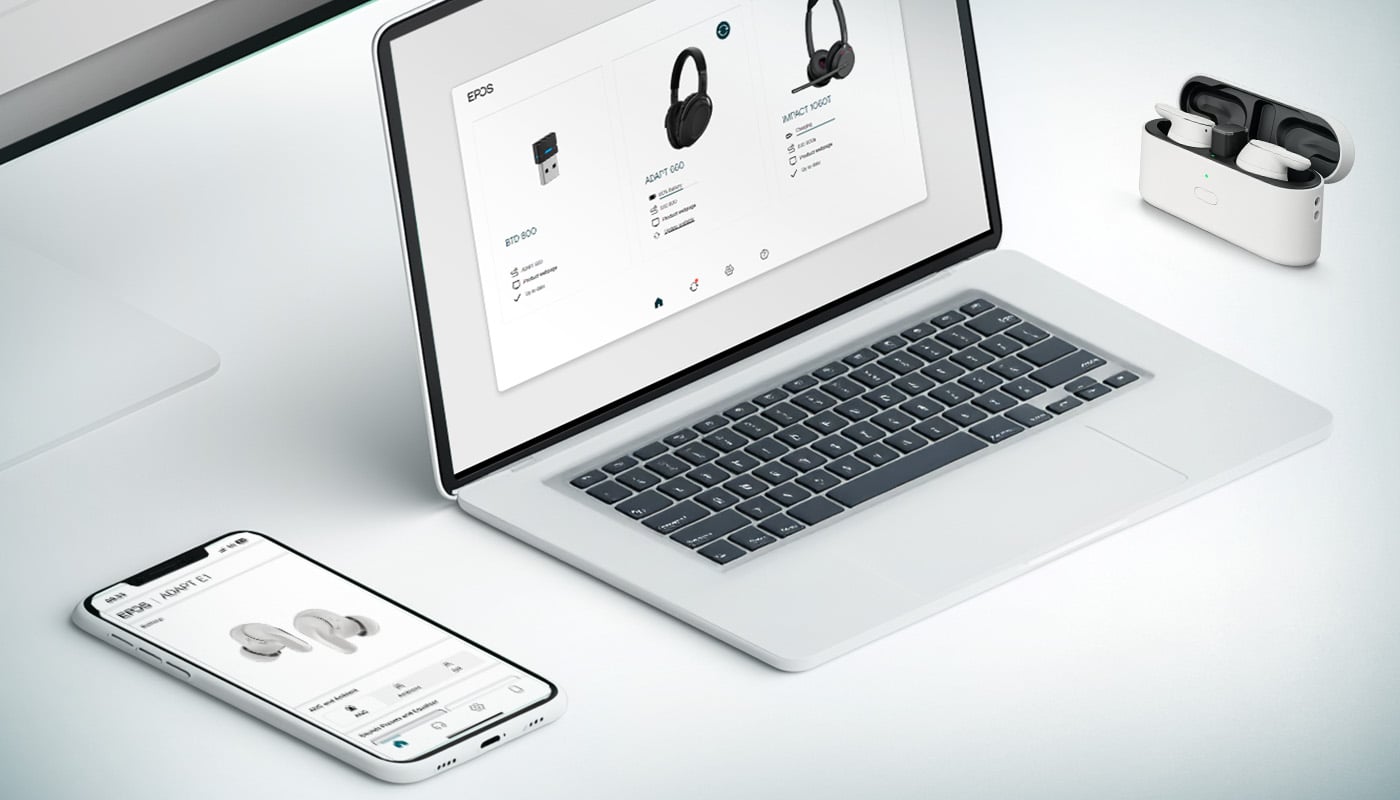
For organizations with strict security policies that prevent the installation of software, EPOS Connect Web offers a secure, browser-based solution. It allows users to deploy firmware updates without the need to download or install any applications.
This alternative ensures maintaining firmware updates to keep EPOS devices up-to-date and fully functional.
Once you have updated your device to the newest software you can use EPOS Connect to select from one of the five sound presets and set the sidetone to your preference.
Tuned by EPOS audio engineers to provide the most natural, well-balanced sound for all environments.
Designed to make spoken words clearer and more distinct. This feature works by amplifying the frequencies associated with human speech, making it easier to hear and understand conversations, podcasts, and audiobooks. Voice enhancement is particularly useful for phone calls, virtual meetings, and any situation where clear communication is essential.
Enhances the deep, lower frequencies of the audio. This means that the deep sounds, like the thump of a drum or the rumble of a bass guitar, become more pronounced. This is particularly useful for genres like hip-hop, electronic, and rock, where strong bass lines are a key component of the music.
Enhances the higher frequencies of the audio. This means that sounds like cymbals, high-pitched vocals, and string instruments become clearer and more prominent. This is particularly useful for genres like classical, jazz, and pop, where clarity and detail in the higher frequencies are important.
Enhances both the lower and higher frequencies of the audio. This is useful for a wide range of music genres, as it provides a fuller and more balanced listening experience.
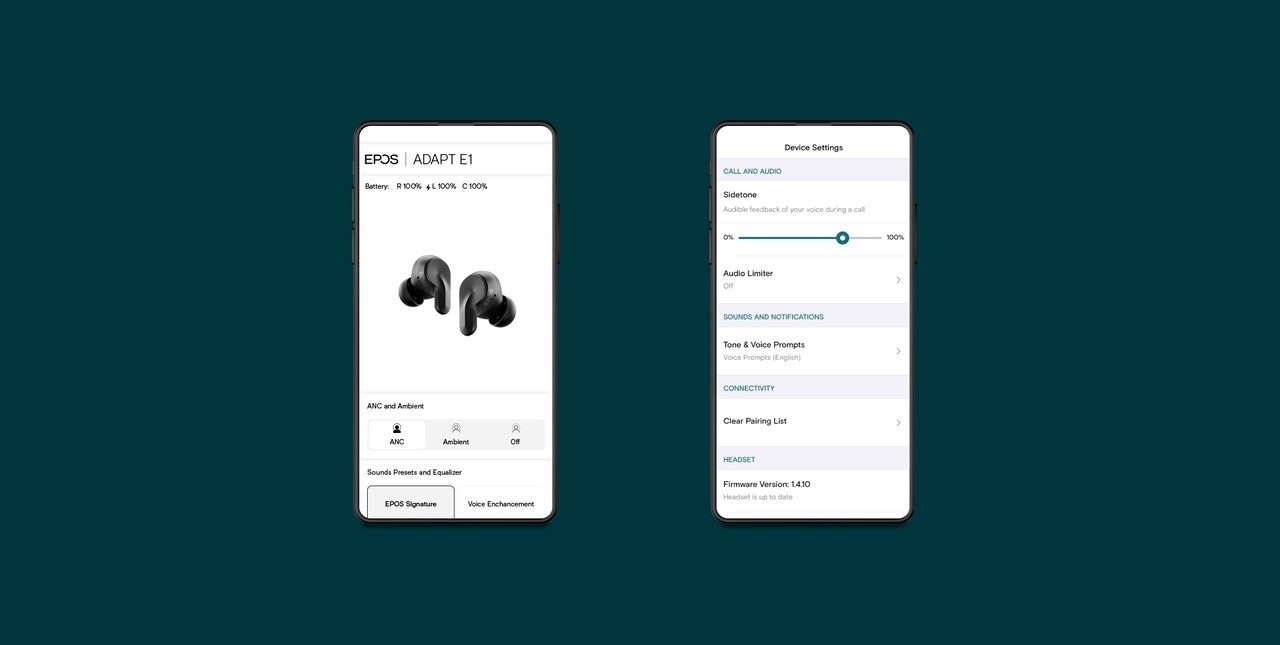
The sidetone feature allows you to hear your own voice through the earbuds while speaking. Sidetone is particularly useful during phone calls or virtual meetings, as it helps you to modulate your voice and speak more naturally.
By providing real-time feedback, sidetone helps prevent you from speaking too loudly or too softly, ensuring clearer and more comfortable communication.
You can adjust the sidetone feature from 0% to 100%, allowing you to control how much of your own voice you hear through the earbuds while speaking.
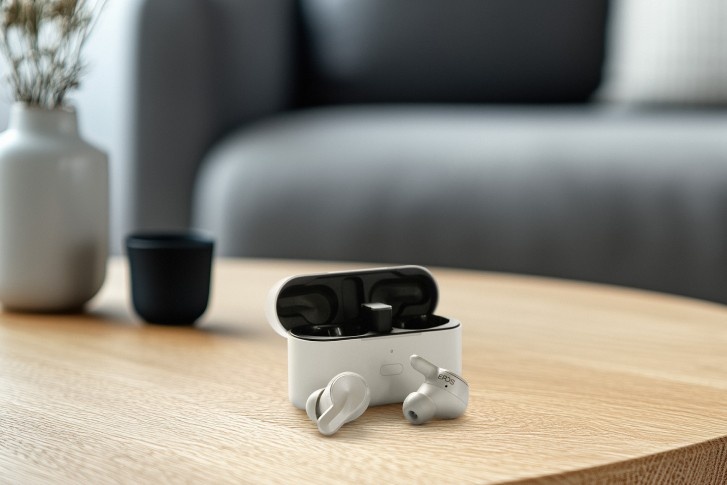
If you are a Microsoft Teams user, setting up Teams voice isolation will filter out background noise during your Teams calls and meetings so others can hear you clearly.
Under Settings in Microsoft Teams, you can add your voice profile that will tell Microsoft Teams which sounds to keep (your voice) and which sounds, and other speakers to filter out.
For Zoom users, a similar feature Personalized audio isolation is also available and can be enabled under your user settings.
Enabling the voice recognition and noise suppression features available will ensure you come across clear when using your ADAPT E1.